AI Assistant
The AI Assistant section lets organization administrators configure Ask AI for the entire organization. Ask AI is the in-editor assistant that helps users generate JavaScript and SQL from natural-language prompts in JavaScript modules and queries.
API keys are encrypted and stored securely. Only organization administrators can view or change these settings.
AI Assistant configuration is available in Appsmith v2.0 and later (Not Available on the free hosted version using app.appsmith.com domain). If your instance is on an earlier version, this page does not appear in Admin Settings and Ask AI is not available.
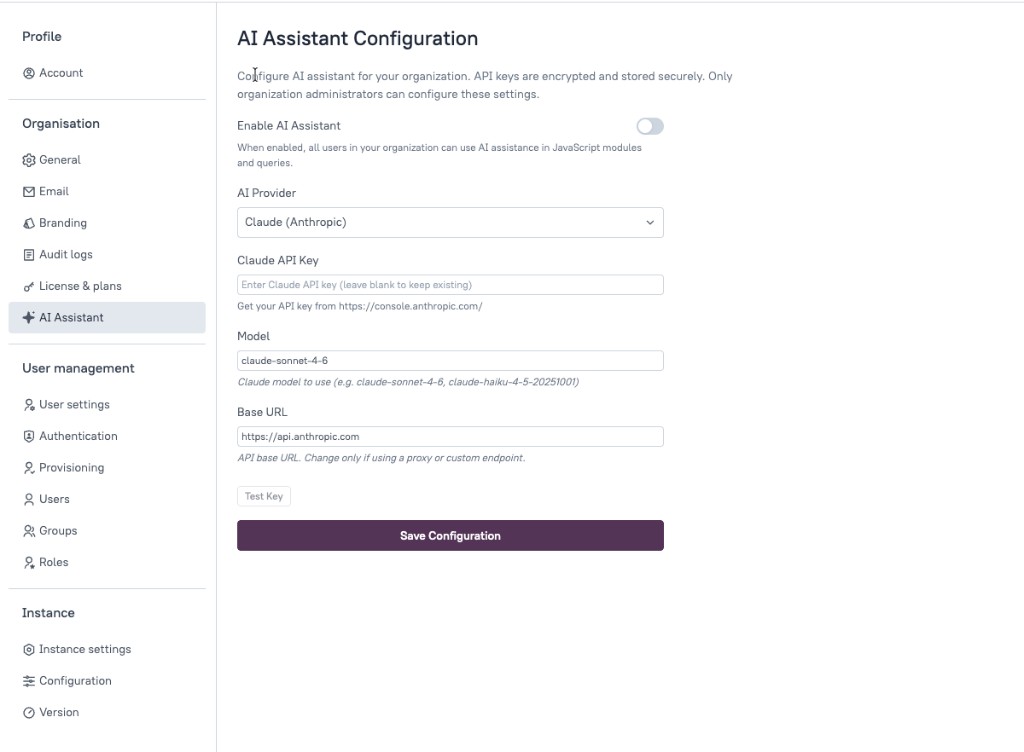
AI Assistant Configuration
Enable AI Assistant
Turn Ask AI on or off for your organization. When enabled, all users in your organization can use AI assistance in JavaScript modules and queries.
When disabled, Ask AI entry points are hidden and users cannot generate code with the assistant.
AI Provider
Select the AI provider that powers Ask AI for your organization. The provider you choose determines which API key and model fields appear on this page. At this time, the following models are supported:
- Claude (Anthropic)
- OpenAI (ChatGPT)
- Azure Open AI
- Local hosted Ollama
For example, Claude (Anthropic) uses your Anthropic API key and Claude model settings.
Claude API Key
Enter your Anthropic API key so Appsmith can call Claude on behalf of your organization. The key is encrypted and stored securely.
- Leave the field blank when saving other settings if you want to keep the existing key.
- Get an API key from the Anthropic Console.
Model
Specify the Claude model Appsmith should use for Ask AI responses.
Default: claude-sonnet-4-6
Examples: claude-sonnet-4-6, claude-haiku-4-5-20251001
Base URL
Set the API base URL for Anthropic requests.
Default: https://api.anthropic.com
Change this value only if you use a proxy or a custom API endpoint.
Save and validate configuration
Test Key
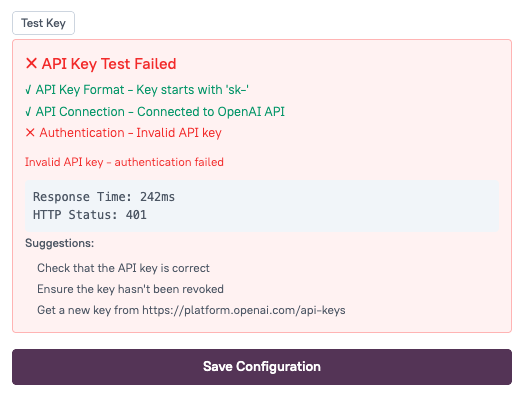
Click Test Key to verify that your API key, model, and base URL are valid before saving. Use this to confirm connectivity without applying changes to your organization.
After you click Test Key, Appsmith shows the results of the connection check, including API key format, connection, and authentication status. The example below shows a failed test with troubleshooting suggestions:
Save Configuration
Click Save Configuration to apply your AI Assistant settings. Changes take effect for all users in the organization after the save completes.
For instructions on using Ask AI in the editor, see Use Ask AI.